
How to Recover Deleted Photos From Gallery on Android and iPhone Updated Guide
Losing photos from your phone gallery can be frustrating. Personal memories, important screenshots, or work images can disappear with a single wrong tap. The good news is that deleted photos are not always gone forever. In many cases, they can be recovered using built-in phone features or reliable recovery methods.
This guide explains how to recover deleted photos from the gallery step by step. The methods shared here are safe, practical, and suitable for both Android and iPhone users.
Why Photos Get Deleted From Gallery
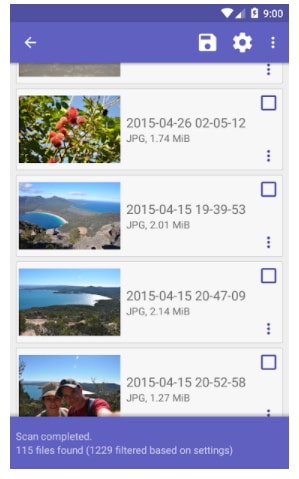
Photos can be removed from your gallery for many reasons. Understanding the cause helps you choose the right recovery method.
Accidental Deletion
This is the most common reason. While cleaning storage or selecting multiple images, users often delete photos by mistake.
System or App Issues
Software updates, app crashes, or gallery glitches can sometimes cause photos to disappear.
Storage or SD Card Problems
On Android phones, corrupted SD cards or sudden removal of storage can lead to missing images.
Factory Reset or Phone Reset
Resetting a phone without a proper backup can erase all gallery data.
Things to Do Immediately After Photo Deletion
Before trying any recovery method, follow these basic rules to increase your chances of success.
Stop Using the Phone
Avoid taking new photos, installing apps, or downloading files. New data can overwrite deleted photos.
Do Not Clear Cache or Storage
Clearing storage may permanently erase recoverable photo data.
Check Backup Options First
Most phones automatically back up photos without users realizing it.
How to Recover Deleted Photos From Gallery on Android
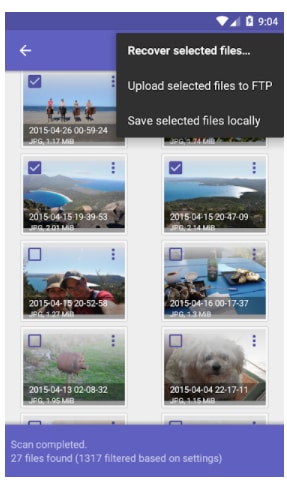
Android phones offer multiple ways to recover deleted photos depending on your device and settings.
Recover Photos Using Google Photos Trash
If Google Photos is enabled, deleted images are usually stored temporarily.
Steps to Recover
-
Open the Google Photos app
-
Tap on Library
-
Select Trash or Bin
-
Choose the photos you want to restore
-
Tap Restore
Deleted photos remain here for up to 30 days. After that, they are permanently removed.
Recover Deleted Photos From Gallery App Trash
Many Android brands like Samsung, Xiaomi, Realme, and Vivo have a built-in recycle bin.
Steps
-
Open the Gallery app
-
Go to Trash, Recycle Bin, or Recently Deleted
-
Select deleted photos
-
Tap Restore
This feature usually stores photos for 15 to 30 days.
Recover Photos From Google Drive Backup
If gallery images were backed up to Google Drive, recovery is possible after reset or deletion.
How It Works
During phone setup, Google allows restoring backed-up data including photos. This method works best after a factory reset.
Recover Deleted Photos Using File Manager
Sometimes photos are hidden, not deleted.
Steps
-
Open File Manager
-
Go to Internal Storage
-
Check folders like DCIM, Pictures, or WhatsApp Images
-
Enable Show Hidden Files
This method works when gallery apps fail to display existing images.
How to Recover Deleted Photos From Gallery on iPhone
Apple provides built-in recovery options that make photo restoration easier.
Recover Photos From Recently Deleted Folder
iPhones store deleted photos for a limited time.
Steps
-
Open Photos app
-
Tap Albums
-
Open Recently Deleted
-
Select photos
-
Tap Recover
Photos stay here for up to 30 days.
Recover Deleted Photos From iCloud Backup
If iCloud backup is enabled, photos can be restored.
Steps
-
Go to Settings
-
Tap General
-
Select Transfer or Reset iPhone
-
Choose Erase All Content and Settings
-
Restore from iCloud Backup during setup
Make sure the backup was created before photo deletion.
Recover Photos Using iTunes or Finder Backup
If you regularly back up your iPhone to a computer, this method works well.
Steps
-
Connect iPhone to computer
-
Open iTunes or Finder
-
Select Restore Backup
-
Choose an older backup
This restores all data from the selected backup, not just photos.
Can Deleted Photos Be Recovered Without Backup
Yes, but success depends on how quickly you act and how much the phone has been used after deletion.
Internal Storage Recovery
Some data remains in storage until overwritten. However, modern Android and iOS security makes this harder without backups.
Why Recovery Is Not Always Guaranteed
New files overwrite old data quickly, especially on newer devices with encrypted storage.
Common Mistakes to Avoid During Photo Recovery
Avoid these actions to prevent permanent photo loss.
Installing Random Recovery Apps
Many apps promise recovery but either fail or show ads without results.
Rooting or Jailbreaking Without Knowledge
This can damage your phone and cause data loss.
Using Multiple Recovery Tools
Repeated scans may overwrite recoverable data.
How to Prevent Photo Loss in the Future
Prevention is always better than recovery.
Enable Automatic Cloud Backup
Use Google Photos or iCloud with sync turned on.
Regular Manual Backups
Save photos to external drives or computers.
Use Secure Gallery Apps
Some gallery apps offer private vaults and backup features.
Check Before Deleting
Always review selected photos before tapping delete.
Frequently Asked Questions
Are permanently deleted photos recoverable
If photos are removed from trash and no backup exists, recovery chances are very low.
Do recovery apps really work
Some work in limited cases, but built-in backup options are more reliable.
How long do deleted photos stay in trash
Usually 15 to 30 days, depending on device and app.
Conclusion
Recovering deleted photos from the gallery is possible in many situations, especially if you act quickly. Android and iPhone devices both provide built-in recovery options like trash folders and cloud backups. Checking these features should always be your first step before trying advanced methods.
To avoid future stress, keeping automatic backups enabled is the safest approach. Photos are valuable memories, and a simple backup habit can save you from permanent loss.